Overview
HoverScribble puts a clear sheet of glass over your whole screen and lets you draw on it. Whatever is underneath keeps running: a slide deck, a PDF, a browser, a video call, a game. You circle, underline, point and write on top of it, then carry on working without having to wipe anything first.
It started with a real need. A friend who designs games needed to draw on the screen while working, and so did I: I volunteer with high school students in physics, engineering and programming, and I kept wanting a fast, clean way to point at things and explain them right where they were. Nothing I tried felt right, so I built it. Then I kept widening it to cover the situations people actually wrote to me about.
Specifications
- Tools
- 20+
- Platforms
- Windows and Mac
- Releases
- 18 in ten months
- Automated Mac checks
- 138
- Price
- Once, no subscription
What it enables
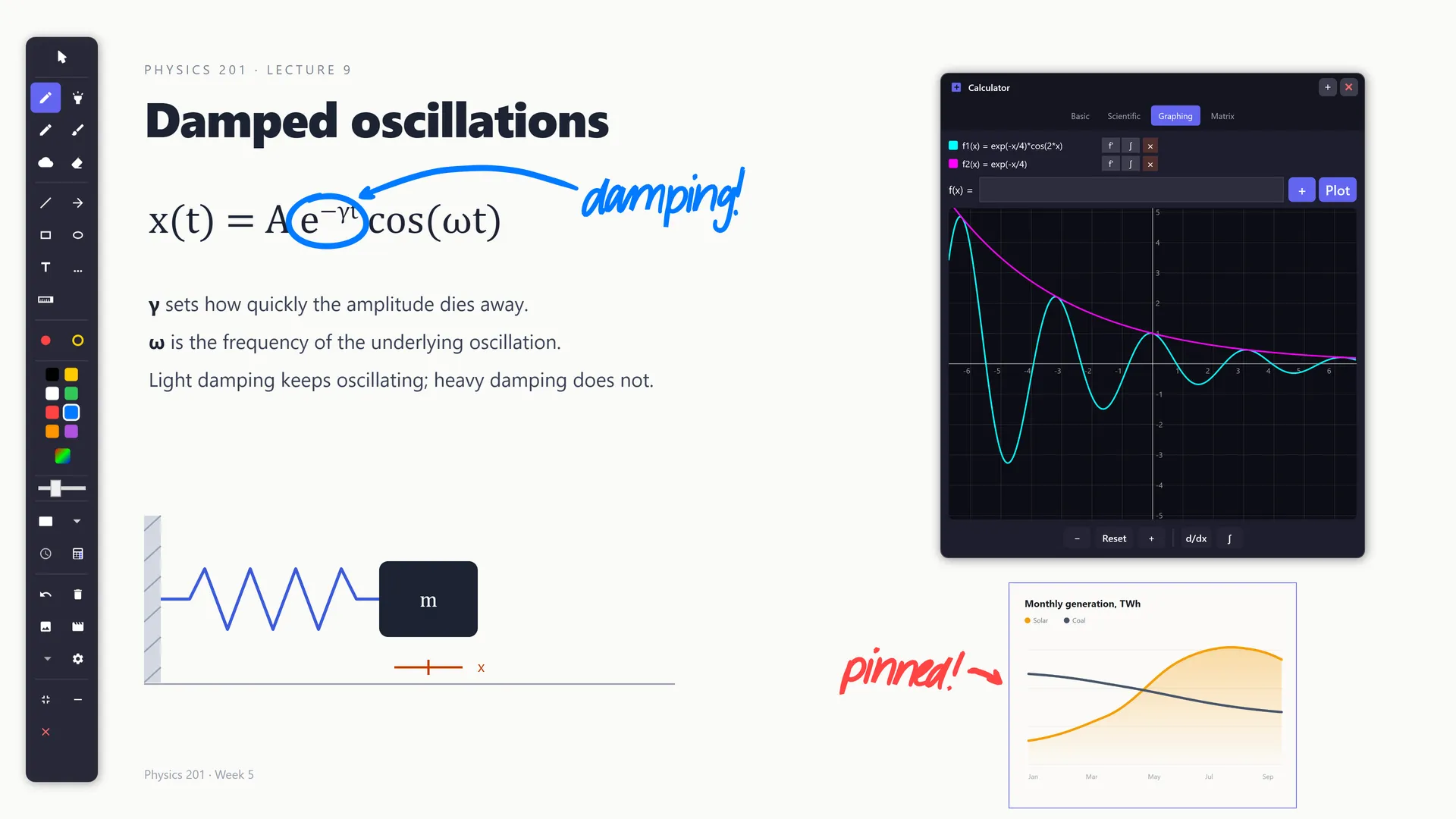
A teacher on a video call can teach the way they would at a whiteboard. Circle the term in the equation, draw the arrow to the graph, write “damping!” next to it, then click through to the next slide. The ink stays until they clear it, and everyone on the call sees it, because it is drawn on the screen they are sharing.
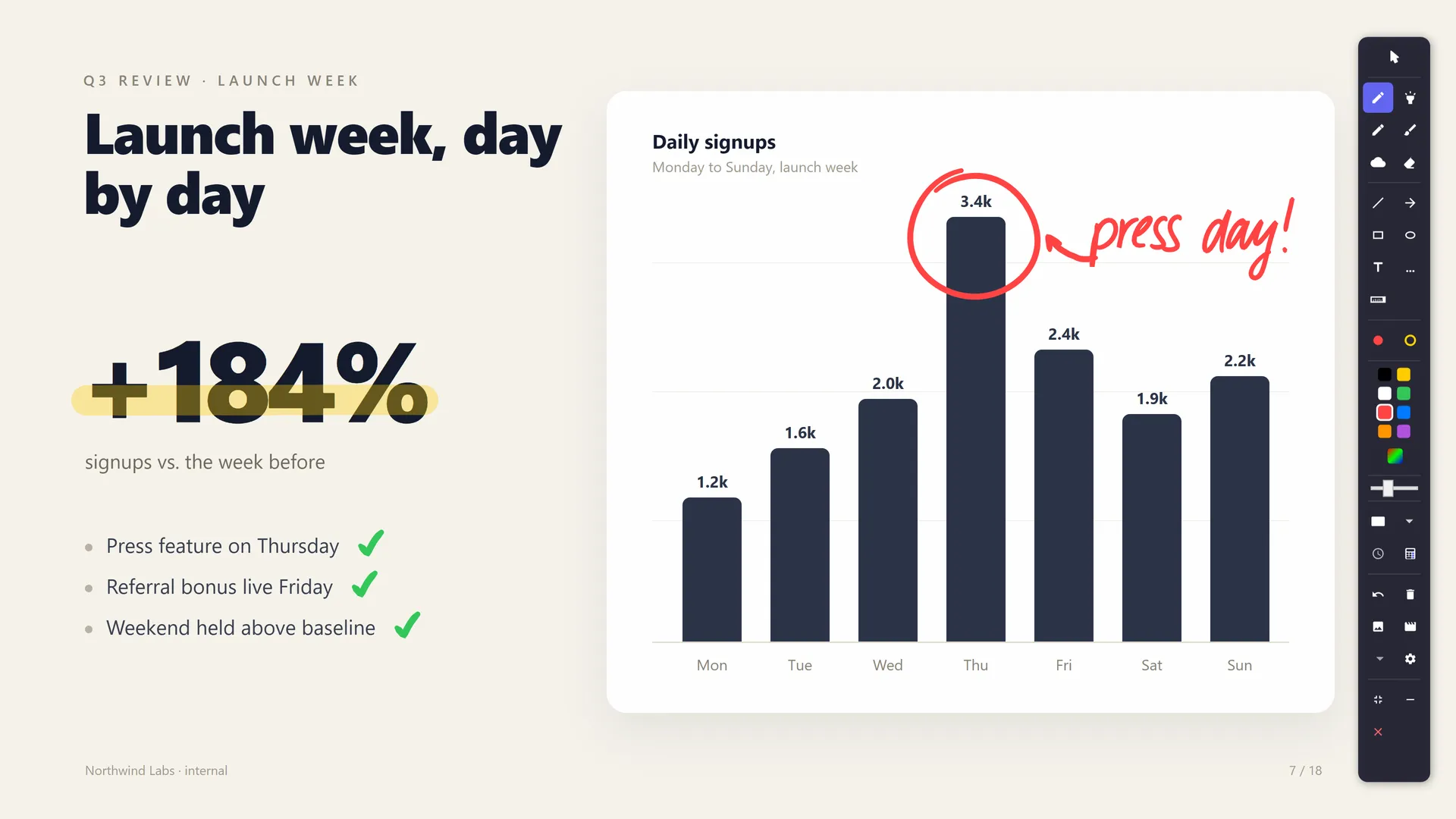
A presenter stops saying “the bar on the right, no, the other one”. They circle it. A laser pointer and a spotlight help on screens with a lot going on, and fading ink cleans itself up for quick gestures that don’t need to stay.
A streamer can draw over a game while the game keeps running. Viewers see the plan drawn on the map, and the game never loses its clicks.
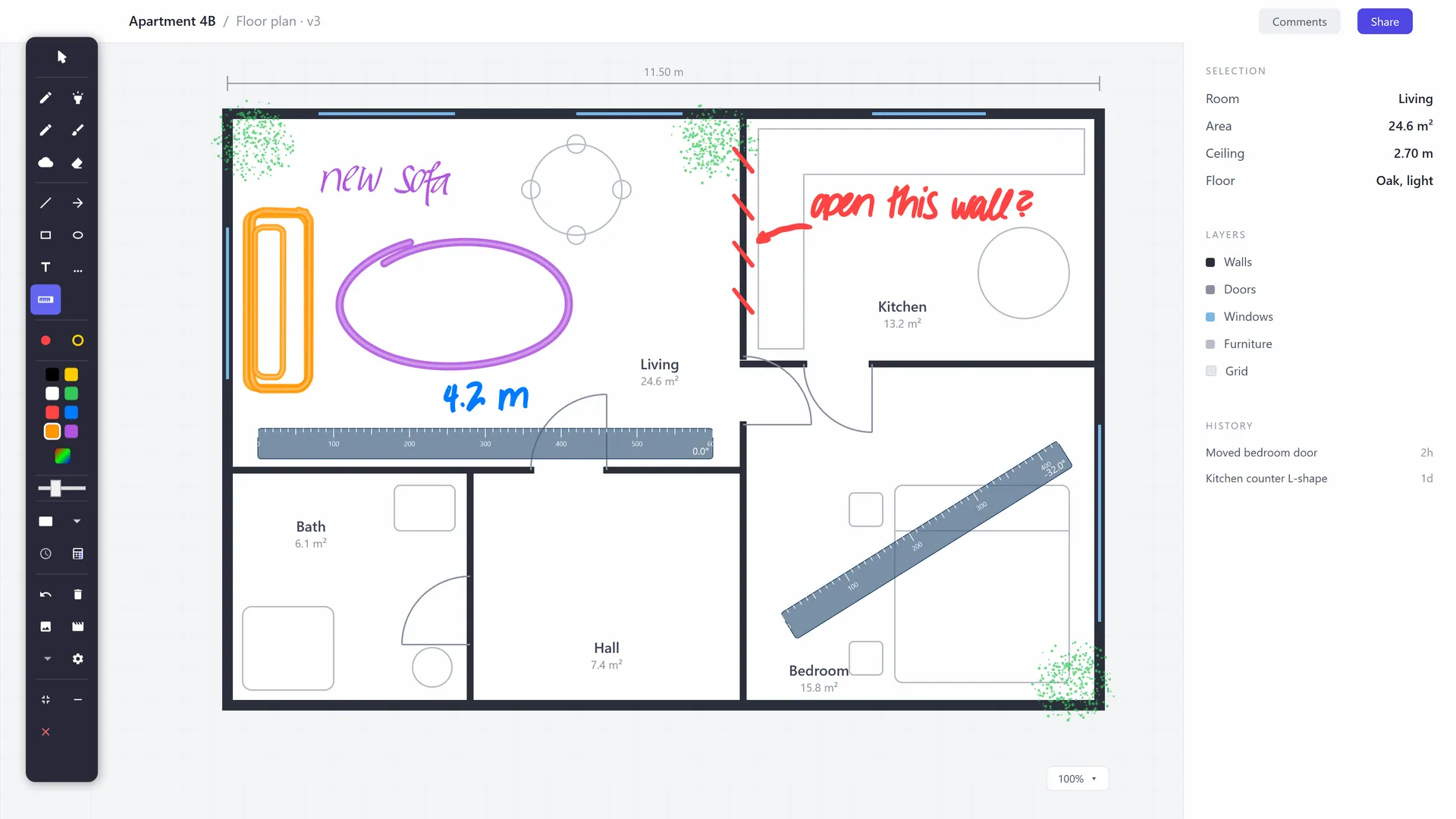
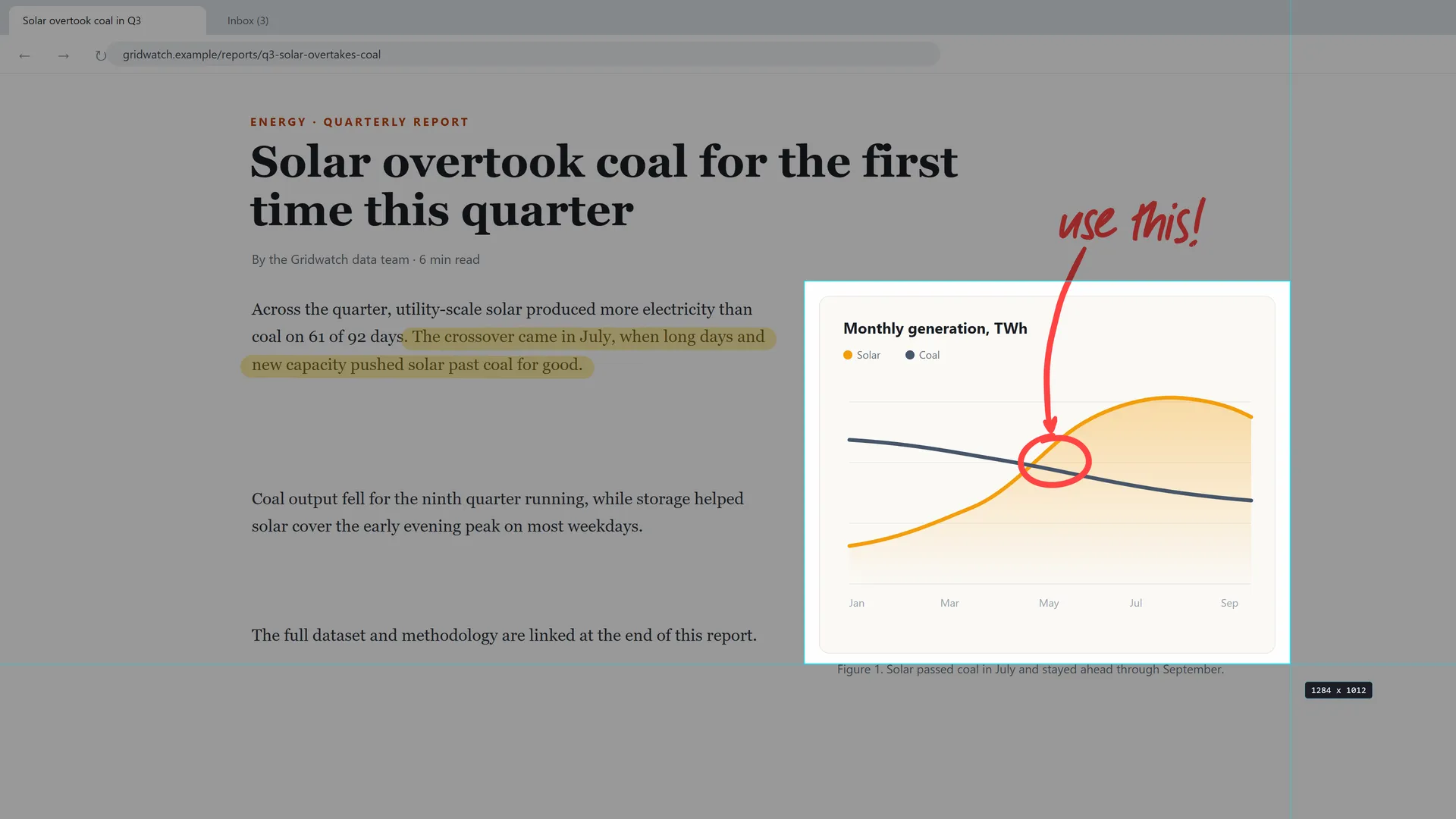
A student can mark up a PDF or lecture slide without changing the file, then grab the marked region as an image and drop it into their notes. The same goes for anyone giving feedback on a design, a dashboard or a piece of code in a meeting: the comment goes exactly where the problem is.
It works with a mouse, a touch screen or a pen tablet, with pressure from any Windows Ink pen and optional trackpad pressure on a Mac.
Highlights
- Over 20 tools in one toolbar. Pen, highlighter, more than 15 shapes, text, whiteboard and blackboard, laser pointer, spotlight, fading ink, an on-screen ruler, a four-mode calculator with graphing, and Story Mode, which captures your screen at intervals into a visual timeline of a session.
- A native Mac version, without owning a Mac. A signed, notarized Mac app, built and tested entirely on rented cloud Macs, with 138 automated checks passing before launch.
- 18 releases in ten months, many of them from user emails. When a user wrote that the app forgot their colours between sessions and that shortcuts only worked after clicking the toolbar, both fixes shipped in the next release.
- Prompts that never land on a live screen share. Trial reminders and update offers wait for a natural break, like opening the app, never the middle of a presentation. A popup in front of a class is a bug, whatever it says.
- Bought once. Nothing about the app running on someone’s computer costs me anything per user, so I don’t charge for it every month.
How it works
The idea is two layers. Your apps sit at the bottom, untouched. Above them is one transparent window that spans every monitor and holds all the ink. The interesting part is deciding, moment to moment, who gets your click. While you draw, the glass takes it. Hold a key, or flip into pass-through, and the click falls straight through to the app underneath while your ink stays exactly where it was. The toolbar is the only part that always answers.
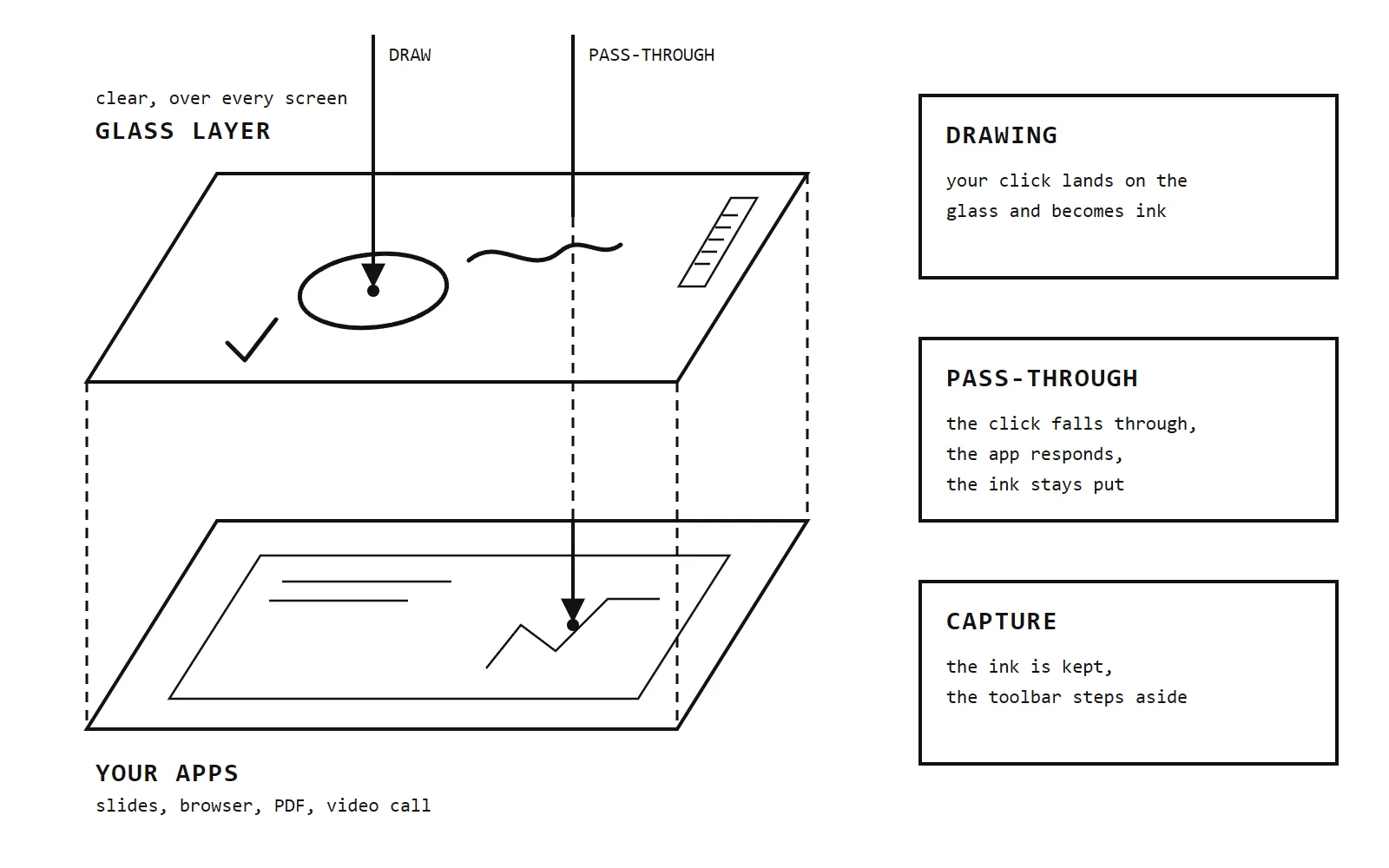
- 1 Drawing The click stops at the glass and turns into ink.
- 2 The glass One clear sheet across every monitor, holding all the ink.
- 3 Toolbar The one part that always catches clicks.
- 4 Pass-through The click reaches the app underneath. The ink stays put.
- 5 Your apps Never edited. The ink lives above them, not in them.
Captures follow the same thinking. A screenshot keeps your ink, because the ink is usually the point, but the toolbar steps out of the picture, and pinned images never end up photographed inside the next capture. On the Mac I chose a native app over a shared cross-platform one, because an overlay lives or dies on how the system stacks windows, full-screen apps and desktops, and that is exactly where shared toolkits fight the platform.
Challenges
Outcome
HoverScribble is live for Windows and Mac at hoverscribble.com, with a 7-day trial that unlocks everything. Both versions tell you when a new release is out, and on Windows one click installs it. It has rough edges and honest gaps: it does not zoom or record the screen, it cannot draw over games running in exclusive full screen, and the Mac version is new and still needs more time on real MacBooks. The comparison pages on the site say this plainly and recommend free tools when they fit better.