Overview
STTpro is a small Windows app that lives in the tray and turns your voice into text in whatever you are typing in. Hold a key, talk, let go, and the words appear at your cursor: in an email, a chat, a code editor, a terminal, a form on a website. There is no window to switch to and nothing to copy across.
I built it for myself. Talking is a lot faster than typing, but most dictation tools only work inside their own app, or they make you paste the result in yourself. I wanted dictation to be a system feature, not an app: something that is just there, in every text box, with one key. And I wanted to stay in control of it, with my own choice of speech service, my history on my own machine, and nothing running on someone else’s server in the middle.
Specifications
- Works in
- Any Windows app with a cursor
- Smart prompt slots
- 9, one hotkey each
- Output modes
- 4
- Telemetry
- None
- In use
- Daily, by me
- Source
- Open, MIT license
What it enables
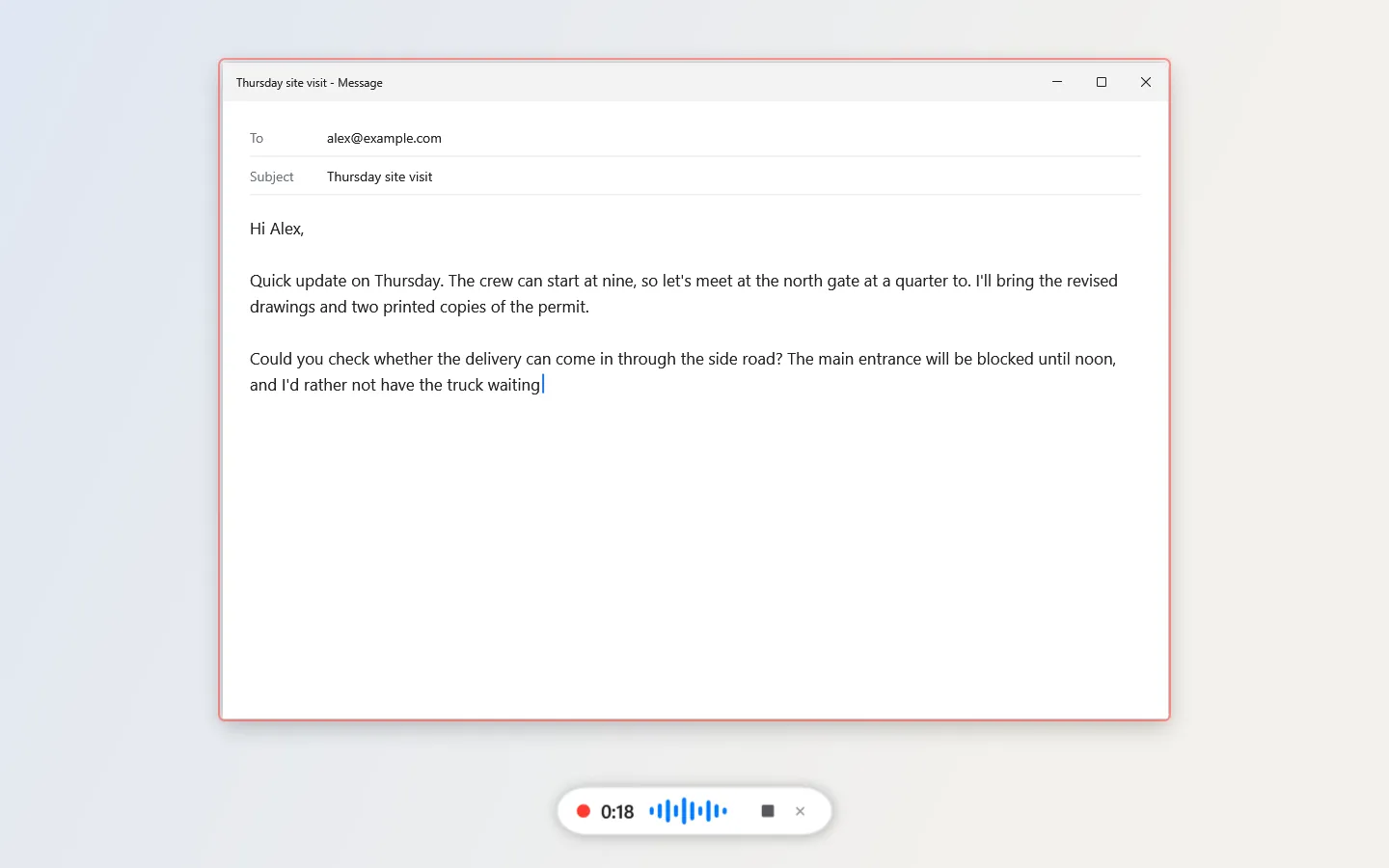
Someone writing a long email can just say it. They hold the key, talk through the update the way they would explain it out loud, and the paragraph appears in the message. A soft frame around the window and a small pill at the bottom of the screen show that it is listening and where the words will go.
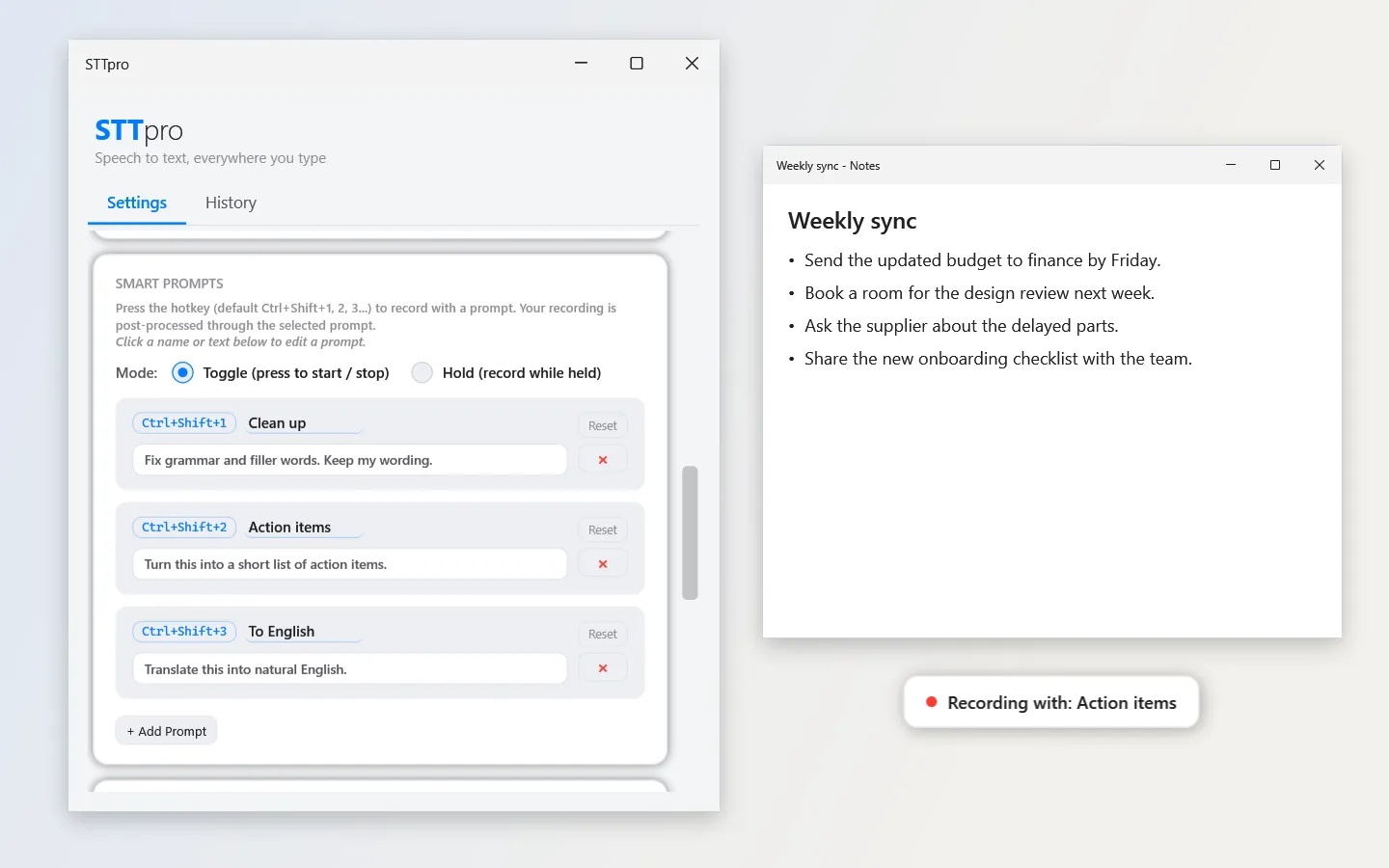
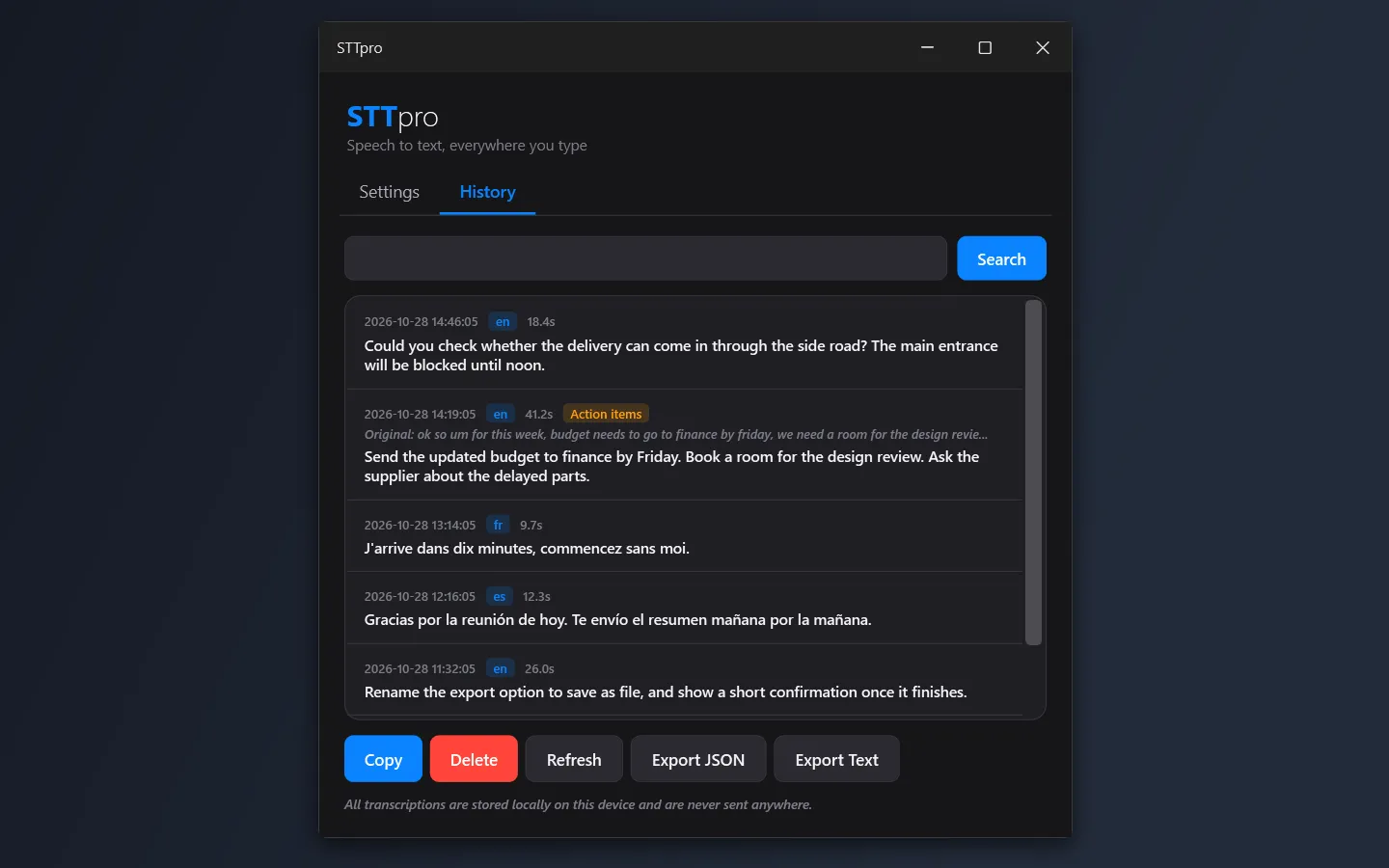
A rambling voice note can arrive as something tidy. With a smart prompt, the same key press runs what you said through a short instruction you wrote yourself, like “turn this into action items” or “translate this into natural English”. You speak loosely, and a clean list lands in your notes. The original words are still kept in the history, in case the tidy version dropped something.
People who write in more than one language don’t have to switch anything. It works out which language you are speaking on its own, so a Hebrew message to a friend and an English email to a client can come out of the same key, one after the other.
Someone who cares where their data goes can use it with a clear conscience. You bring your own speech service, either one of the big hosted ones or a server running on your own machine. Your history stays on your computer, your keys are encrypted, and STTpro itself has no account, no backend and no tracking.
Highlights
- One key, every app. Editors, browsers, chat, terminals, office apps: if it has a cursor, dictation works there. Push-to-talk, hands-free toggle, and a key that re-pastes your last take.
- Nine smart prompts, each on its own hotkey. Clean up, summarize, translate, make a list: whatever you write as an instruction becomes a voice shortcut.
- Your clipboard comes back untouched. Whatever you had copied, text, an image or a set of files, is still there after you dictate, and your clipboard history doesn’t fill up with transcripts.
- Private by design. No backend of its own and no telemetry. The audio goes only to the service you picked, history stays local, and keys are encrypted at rest.
- Light and dark that follow Windows live. Change your Windows theme and every STTpro window follows instantly, title bars included.
How it works
At whiteboard level it is a loop with three stops. A key you hold anywhere on the system starts the recording, and STTpro notes which window you were in. When you let go, the audio goes to the speech service you chose and comes back as text. Then, optionally, that text passes through one of your smart prompts, and finally it is placed back into the window you started in, as if you had typed it.
The interesting work is all in the edges of that loop: making the key work in every app, making sure the text ends up in the right place even when other apps are busy, and making sure the recording itself is clean before it is sent anywhere.
Challenges
Outcome
STTpro is done, and I use it all the time. It does everything I wanted from it: dictation in any app, smart prompts, local history with search and export, usage and cost tracking, and a light and dark interface that follows Windows. The last round of work was polish around the edges, like a clearer recording pill and safer pasting into busy apps.
I built it for my own use, and the source is now open on GitHub. Anyone on Windows can build it and plug in their own speech service.